
● Start · 10 minutes
Quick start
both apps running.
The shortest way from the zip to the wallet on a simulator and the admin panel in Chrome, connected to your own Firebase project. It assumes Flutter and the Firebase CLI are already installed; if not, do Requirements first.
01Before you start
flutter doctorshows no red errors for the platform you want to try.firebase --versionandflutterfire --versionanswer.- You have a Firebase project. If not: console.firebase.google.com → Add project. The free plan is enough to look around; the full installation needs Blaze.
Why Firebase first?
The package does not contain anyone else's Firebase settings: lib/firebase_options.dart is not included in either app. FlutterFire writes it for your own project in step 3. Until then the apps do not compile. This step is required, not optional.
02The ten minutes
- Unzip and open a terminalPut the folder somewhere without spaces, for example
~/projects/superwallet. - Install packages in both apps
cd crypto_wallet flutter pub get cd ../crypto_wallet_admin flutter pub get - Connect both apps to your Firebase projectLog in once, then pick your project when FlutterFire asks.
firebase login cd crypto_wallet flutterfire configure --platforms=ios,android,web cd ../crypto_wallet_admin flutterfire configure --platforms=web - Create the app key fileThe wallet reads its API keys from
.env. An empty copy of the template is fine for a first look.cd crypto_wallet cp .env.example .env - Run the walletStart an iOS simulator or Android emulator first (or add
-d chrome).cd crypto_wallet flutter run --dart-define-from-file=.env - Run the admin panelIn a second terminal:
cd crypto_wallet_admin
flutter run -d chrome
03What you should see
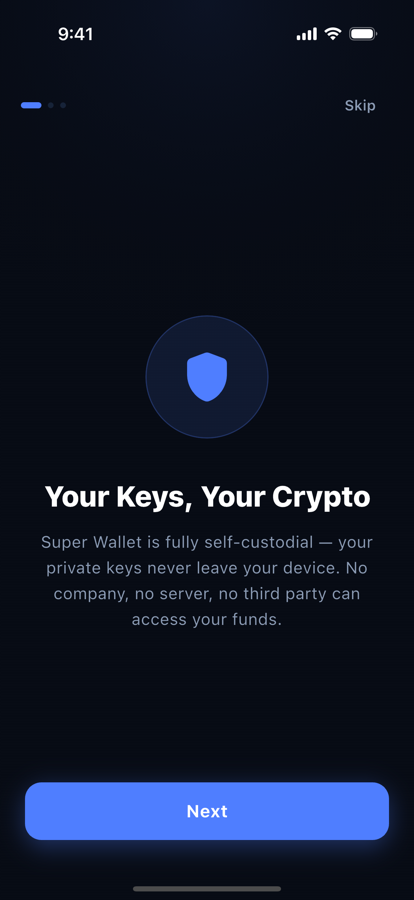
- The wallet opens on onboarding. Create a test wallet and write the seed phrase down; it is a test wallet, but treat it like a real one.
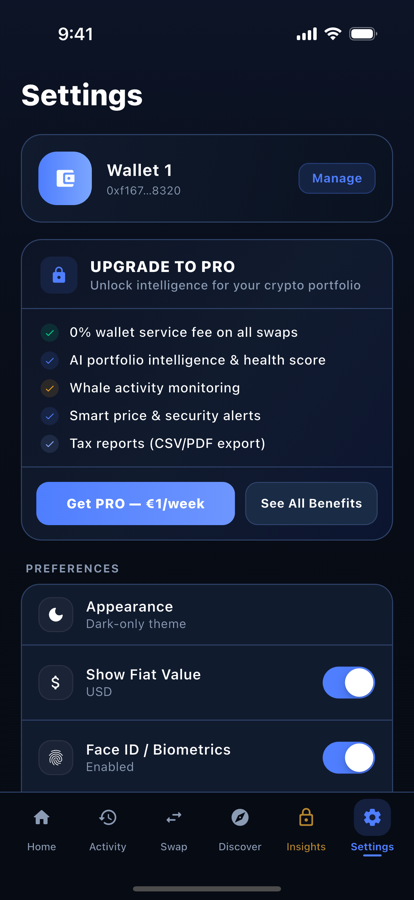
- No fee is added to swaps: the fee is off until you set it in the admin (Setting up earnings).
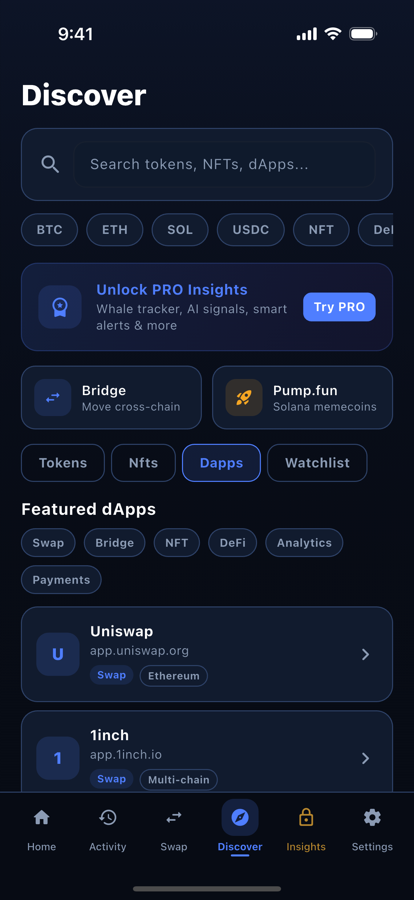
- Swaps show a Simulated badge. That is expected: live quotes need the 0x or 1inch key (Configuration).
- The admin panel shows the Sign In screen. There is no demo or default login. You cannot sign in yet: the first admin is created during the full installation (Installation → First admin).
Next
Continue with Installation: rules, Cloud Functions, the first admin and your keys. Plan about 45 minutes.